When I released the element inspector plugin a while ago, it came with a catch I didn't talk about much: you have to write your element queries by hand.
You know the button says "Save".
What you don't know is what the accessibility layer calls it, whether it has a usable id, whether its title is "Save" or "Save changes", and which of the nested groups between the button and the window your query should anchor to.
So you write a query, run it, watch it fail, add a property, run it again.
Every iteration means re-running a test, and I've lost more time to this than I'd like to admit.
Web developers solved this ages ago. Right-click, Inspect, copy a selector, done. Desktop automation had no such thing, so I built it.
Meet Element Picker
Element Picker is a small cross-platform desktop app that lets you hover any element on your screen and copy a working nut.js locator to the clipboard.
Start a picking session from the tray icon or via a global shortcut.
Move the mouse, and a transparent, click-through overlay traces the element under your cursor with a rectangle and a small badge, e.g. Button · Save changes.
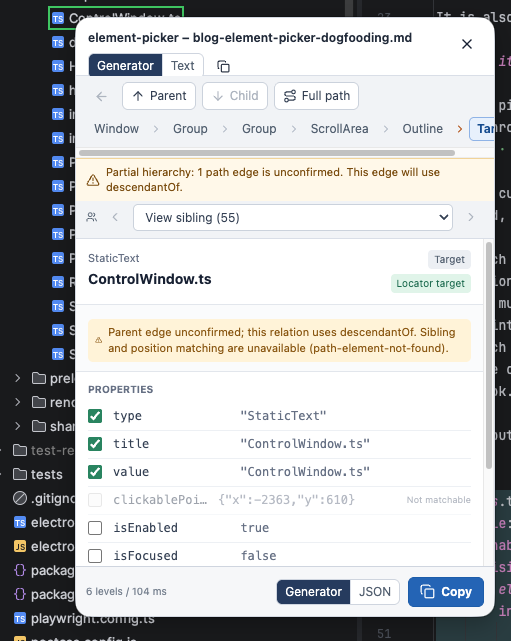
Let the cursor rest for a moment and the app commits. A popup opens next to the cursor showing what it found, and you decide how the locator should be built:
- Which properties to match on. The ones that identify an element are ticked by default, position and state are listed but left off, and anything that can't be matched on is greyed out.
- How much context to include. Walk up to the parent, or fold the whole path from the window down into the query with a single click.
- Which neighbours to anchor to. Point at a sibling and say before, after or next to.
- Code or data. Copy a runnable nut.js query, or the raw element description if you just want to have a look.
Let's look at what comes out of it:
elements.textArea({
    title: "Editor for package.json",
    isEnabled: true,
    isVisible: true,
    in: elements.scrollArea({
        in: elements.tabGroup({
            title: "package.json, JSON file",
            in: elements.group({
                title: "Root Pane",
                in: elements.window({ title: "element-picker – package.json" })
            })
        })
    })
})
This pastes straight into a test. And the nesting is the whole point: a flat "button titled Save" matches every Save button in the application, the nested version pins it to exactly this one. No guessing involved.
A handful of settings
There isn't much to configure, on purpose.
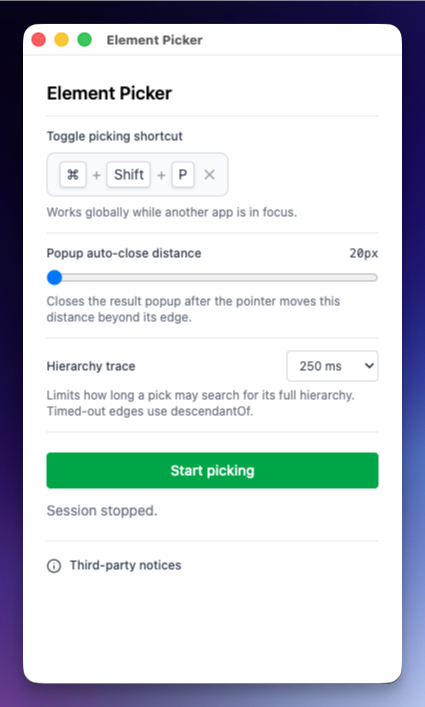
- Toggle picking shortcut. The global shortcut that starts and stops a picking session. It works while another app is in focus, so you never have to bring Element Picker to the front.
- Popup auto-close distance. How far the pointer may move past the popup's edge before it closes. Keep it small if you want the popup out of the way quickly, increase it if you tend to overshoot on the way to the Copy button.
- Hierarchy trace. How long a pick may spend searching for its full hierarchy, 250 ms by default. Some applications need more, and you can lift the limit entirely for those. Anything that times out is marked as such in the result, and the generated locator uses a looser
descendantOfrelation for that level instead of pretending it knows the exact parent. More on why that matters below.
How it's built
Element Picker is an Electron app with a React UI, but almost everything interesting happens outside the visible window: a tray icon, a transparent overlay stretched across your screen, a popup that follows the cursor and, on macOS, a window asking for the permissions it can't work without.
Two decisions shaped the rest.
Picking is click-free, on purpose. The obvious interaction would be "click the element you want", but clicking a UI element activates it. Menus close, dialogs submit, tabs switch. The moment you click, the thing you wanted to inspect is gone. So selection is driven by dwell: rest the cursor on something and that counts as a pick. You never press anything, and the target application never receives an event.
Hovering is cheap, committing is expensive. Answering "what is under the cursor right now" is fast enough to drive the overlay in real time. Working out the element's full ancestry is a much bigger job, on a deep window it can mean tens of thousands of calls into the accessibility layer. So that only runs once, after you've settled on something. Just before it does, the app hides its own overlay and popup, otherwise the picker would pick itself.
The rest was the usual cross-platform tax. Screens report coordinates differently depending on the OS, macOS quietly moves frameless windows around behind your back, and every platform has its own opinion about when an app is allowed to read the screen at all. On macOS that means asking for Accessibility and Screen Recording before anything else can happen, and I'm checking them through nut.js rather than Electron, because what matters is whether the automation stack can see, not whether the window layer can.
Eating my own dog food
Element Picker is built on my own stack: nut.js for the automation primitives and @nut-tree/element-inspector for accessibility access.
Going in, the inspector could already answer "what element is at this point".
Turns out, that's nowhere near enough to generate a good locator. Building the app sent me back into the inspector three times.
1. The feature that didn't exist yet
A locator that matches exactly one element usually needs context: the element, its parent chain, sometimes a neighbour as an anchor. The inspector returned a single element. Ancestors, sibling order, position among children, none of that was reachable.
So it got built. The inspector can now trace a full path from the window that owns an element all the way down to the element itself, with the surrounding siblings at every level. That capability now belongs to the plugin, for everyone using it, because an application needed it. Nobody had asked for it before.
Same story with native input monitoring on Linux, which landed in @nut-tree/bolt because the picker needed to follow a cursor there.
2. Two operating systems, two different answers
Then came the part nobody warns you about: the accessibility APIs don't agree with each other about what a hierarchy is.
On macOS, walking up from an element returns intermediate elements that do not show up when you walk back down from the parent. Both directions answer honestly, they just expose different views of the same tree. For an inspector that prints what it finds, that's a slightly odd hierarchy and nothing more. For a locator generator it's fatal, because the query would contain a level the application doesn't have when searched the other way, and it would fail against the exact element you just picked. So the trace now reconciles both directions and verifies every hop both ways before it trusts it.
On Windows, walking up skips levels outright. Ask for a parent, land two or three levels higher than you should. Same consequence, a query describing a structure that isn't there. The fix was to stop relying on that walk alone: when the upward route looks suspect, the tracer recovers it by searching downward from the owning window instead.
Neither of these shows up in a unit test, because neither is a bug in my code. That's just what the platforms do. You only notice when you generate something executable and actually run it.
3. Knowing how far it got
An interactive picker can't wait forever. A deep window can take seconds to map out, and someone hovering a toolbar expects a popup, not a spinner. So a trace needs a time budget.
But a budget creates a new problem. A result that stopped early looks exactly like a result that finished, and given what the platforms do with hierarchies, "looks finished" is not something I can build a locator on.
So every trace result now says how far it got and why it stopped. Did it reach the window, or did it run out of time? Is this list of siblings complete, or as much as could be collected?
That's what lets the app degrade properly.
When Element Picker knows a parent-child link is solid, it generates the strict version.
When it doesn't, it falls back to descendantOf, a looser match that is slower to run, but true.
That's the warning you can see in the popup screenshot above.
It also refuses to offer position-based matching ("the third one") when it isn't sure it saw all the children, because counting into an incomplete list is worse than not counting at all.
And since mapping a window takes as long as it takes, the time budget became the setting you saw earlier instead of a constant in the library.
What did I learn?
- The inspector had unit and integration tests, and they passed, while on macOS walking up and walking down disagreed about what exists. No test asserted that both directions agree, because it never occurred to me that they might not. It took an application whose entire output depends on it to notice.
- Most inspectors display things. Element Picker emits something executable, so every inaccuracy becomes a failing query in someone's test suite instead of a slightly odd row in a tree view. If you want to know whether your data is correct, make something run on it.
- Every problem above had the same shape: a plausible result where an honest one was needed. A result that can say "I ran out of time here" is what separates a tool that degrades gracefully from one that is confidently wrong.
Shipping Element Picker took longer than it would have on someone else's stack, because part of the work went into the stack itself. But that work shipped to every nut.js user with the regular plugin releases, and the app that prompted it is now the thing that makes writing locators pleasant. I'd do it again.
Where can I get it?
Element Picker is available on the downloads page for everyone with a Solo or Team subscription. The inspector and bolt improvements described above are part of the regular plugin releases, so all you have to do is update.
But please note: Element Picker itself is fully cross-platform, but at the moment only the Windows and Linux builds are available for download. The macOS build still needs some work to get it properly signed and notarized before I can publish it. It'll follow as soon as that's sorted out.
What's next?
This is the first release, and I'm sure there are applications out there that will break it in ways I haven't seen yet. If you find one, let me know on Discord or GitHub!
All the best
Simon